
Workflow Versioning
Managing workflow versions and releases
Versioning enables safe workflow changes with controlled releases, revision tracking, and rollback capabilities. This ensures production workflows remain stable while you iterate on improvements.
Version Concepts
Version Structure
Each workflow can have multiple versions:
Workflow
├── Version 1 (superseded)
├── Version 2 (active)
└── Version 3 (draft)
Version vs Revision
| Concept | Purpose | When Created |
|---|---|---|
| Version | Major changes, new releases | Manual action |
| Revision | Within-version edits | Auto-increment on save |
Example:
Version 2, Revision 0 → First save of Version 2
Version 2, Revision 1 → Second save
Version 2, Revision 2 → Third save
Version Lifecycle
States
| State | Description | Trigger Behavior |
|---|---|---|
| Draft | Being edited, not active | Won't trigger |
| Active | Current version processing events | Will trigger |
| Superseded | Previous version replaced by newer release | Won't trigger |
| Deleted | Marked for removal | Won't trigger |
State Transitions
Draft ──▶ Active ──▶ Superseded
  │                           │
  └────────────────▶ Deleted ◀┘
Timestamps
| Field | Description |
|---|---|
createdAt | When version was created |
updatedAt | Last modification time |
releasedAt | When version became Active |
supersededAt | When version was superseded |
deletedAt | When version was deleted |
Creating Versions
New Version
Create a new version when making significant changes:
- Open workflow editor
- Click "Create New Version"
- Optionally copy from existing version
- Edit the new version
- Test before releasing
Version Numbering
Versions are numbered sequentially:
Version 1 → Version 2 → Version 3 → ...
Version numbers cannot be reused once created.
Releasing Versions
Release Process
- Test - Verify workflow works correctly
- Review - Check all node configurations
- Release - Make the version Active
- Monitor - Watch for issues
- Archive - Archive old version (optional)
Release Notes
Add release notes to document changes:
## Version 3 Release Notes
- Added Slack notification for urgent meetings
- Changed AI model from medium to high for analysis
- Fixed email template formatting
What Happens on Release
When a version is released:
- Previous Active version becomes Superseded
- New version becomes Active
- New events trigger the Active version
- In-progress executions continue on their version
Version Relationships
Execution Binding
Each execution is bound to a specific version:
Event → Triggers Version 2 → Execution runs Version 2
Even if Version 3 is released during execution, the execution continues with Version 2.
Trigger Configuration
The execution trigger links to a specific version:
{
  "workflowId": "wf-123",
  "versionId": "v2-456",
  "type": "EVENT",
  "eventType": "MEETING_ENDED"
}
Rollback
When to Rollback
Consider rollback when:
- New version has bugs
- Performance degradation
- Unexpected behavior
- Integration failures
Rollback Process
- Identify the stable version
- Release the stable version (re-release)
- Monitor to confirm fix
- Investigate and fix new version
- Re-release fixed version
Rollback Considerations
| Factor | Impact |
|---|---|
| In-progress executions | Continue on current version |
| New events | Trigger rolled-back version |
| Data compatibility | Ensure old version handles new data |
| Integration changes | Verify integrations still work |
Version Comparison
Comparing Versions
View differences between versions:
- Select two versions to compare
- Review structural changes
- Review configuration changes
- Identify node additions/removals
Comparison Elements
| Element | Comparison |
|---|---|
| Nodes | Added, removed, modified |
| Edges | Connection changes |
| Parameters | Configuration changes |
| Triggers | Trigger configuration |
Best Practices
1. Version Meaningful Changes
Create new versions for:
- ✅ Adding new nodes or paths
- ✅ Changing business logic
- ✅ Modifying AI prompts significantly
- ✅ Updating integrations
Don't version for:
- ❌ Minor text fixes
- ❌ Whitespace changes
- ❌ Testing during development
2. Write Clear Release Notes
Document changes for future reference:
## Changes in Version 4
- Added: Urgent flag detection before notification
- Changed: AI model tier from low to medium
- Fixed: Email formatting for long summaries
- Removed: Deprecated SMS notification path
3. Test Before Releasing
Before releasing:
- Test with MANUAL trigger
- Verify all paths work
- Check error handling
- Review AI outputs
- Confirm integration connectivity
4. Keep One Version Active
Avoid multiple released versions:
✅ Good:
Version 1: Superseded
Version 2: Active
Version 3: Draft
❌ Confusing:
Version 1: Active
Version 2: Active  // Which one triggers?
5. Keep History, Don't Delete
Preserve version history:
- Superseded versions are kept for reference
- Delete only failed experiments
- Keep release notes accessible
6. Monitor After Release
After releasing:
- Watch execution success rate
- Review any errors immediately
- Check execution duration
- Verify outputs are correct
Version History
Viewing History
Access version history:
- Open workflow
- Click "Version History"
- View all versions with metadata
- Select version to view details
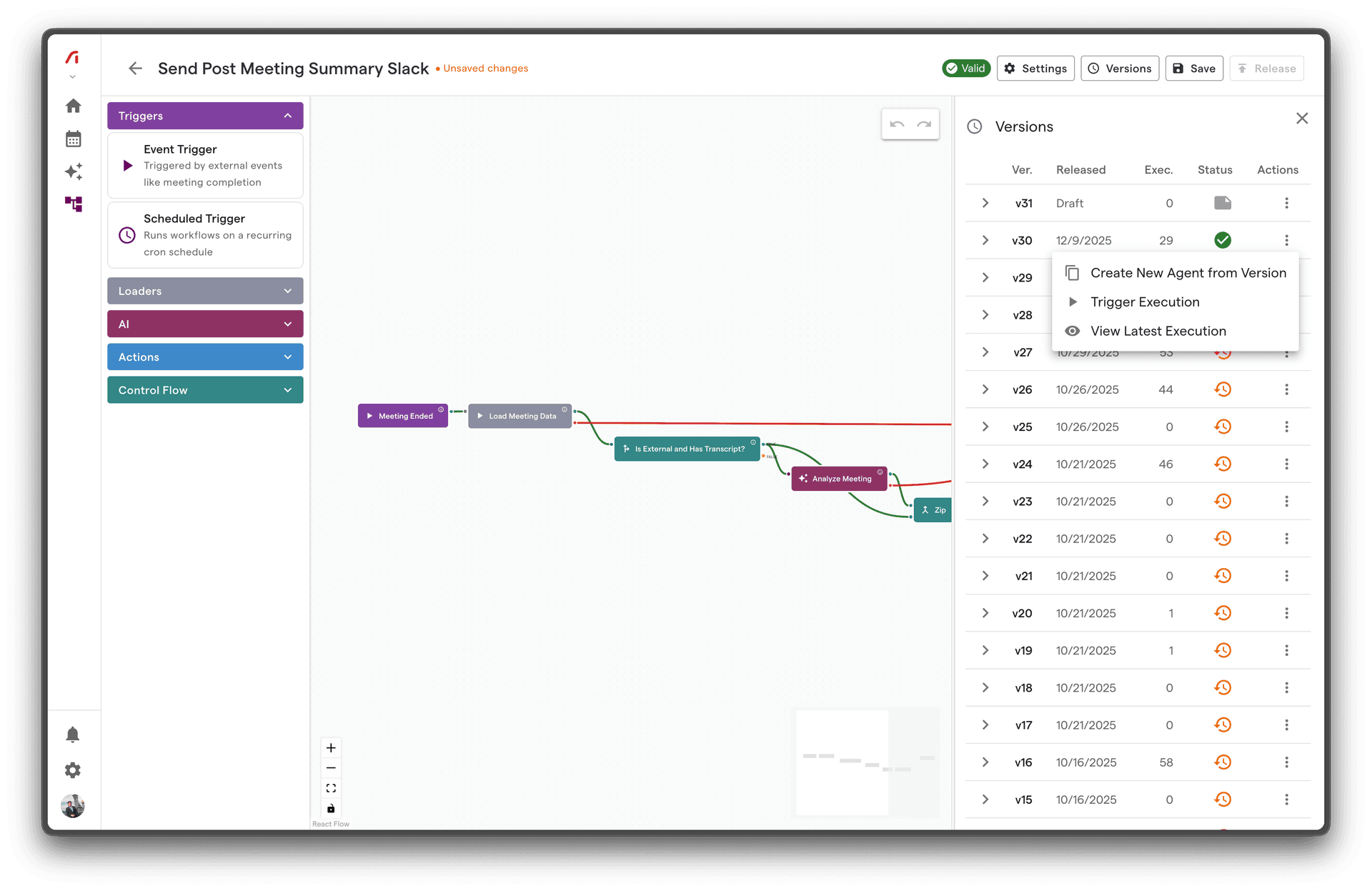
History Information
| Field | Description |
|---|---|
| Version Number | Sequential identifier |
| Revision Count | Edits within version |
| Status | Current state |
| Release Date | When released |
| Release Notes | Change documentation |
| Duration Active | Time as released version |
Multi-Environment Patterns
Development Workflow
1. Edit in draft version
2. Test with MANUAL trigger
3. Fix issues
4. Create release candidate
5. Test in staging (if available)
6. Release to production
Hotfix Workflow
For urgent fixes:
1. Identify issue in released version
2. Create new version from released
3. Apply minimal fix
4. Test fix
5. Release immediately
6. Monitor closely
7. Plan comprehensive fix for next version
Troubleshooting
Can't Release Version
Possible causes:
- Validation errors in workflow
- Missing required configuration
- Integration not connected
Solution:
- Review validation errors
- Fix configuration issues
- Test before releasing
Wrong Version Triggering
Possible cause: Multiple Active versions
Solution:
- Check version states
- Ensure only one version is Active
- Verify correct version is Active
Lost Changes
Possible cause: Didn't save before creating new version
Solution:
- Check revision history
- Look at previous version
- Recreate changes if needed
Execution Using Old Version
Possible cause: Execution started before release
Solution:
- This is expected behavior
- Executions complete on their bound version
- New events use new version