
Getting Started with Agents
Access Agents and understand prerequisites for building workflows
Agents is a workflow automation feature within Decision Site. This guide covers prerequisites and how to access Agents.
Prerequisites
Before building workflows, ensure you have:
- Access to a Decision Site workspace
- ADMIN or CREATOR role in your workspace
- Required integrations connected (by workspace admin)
Accessing Agents
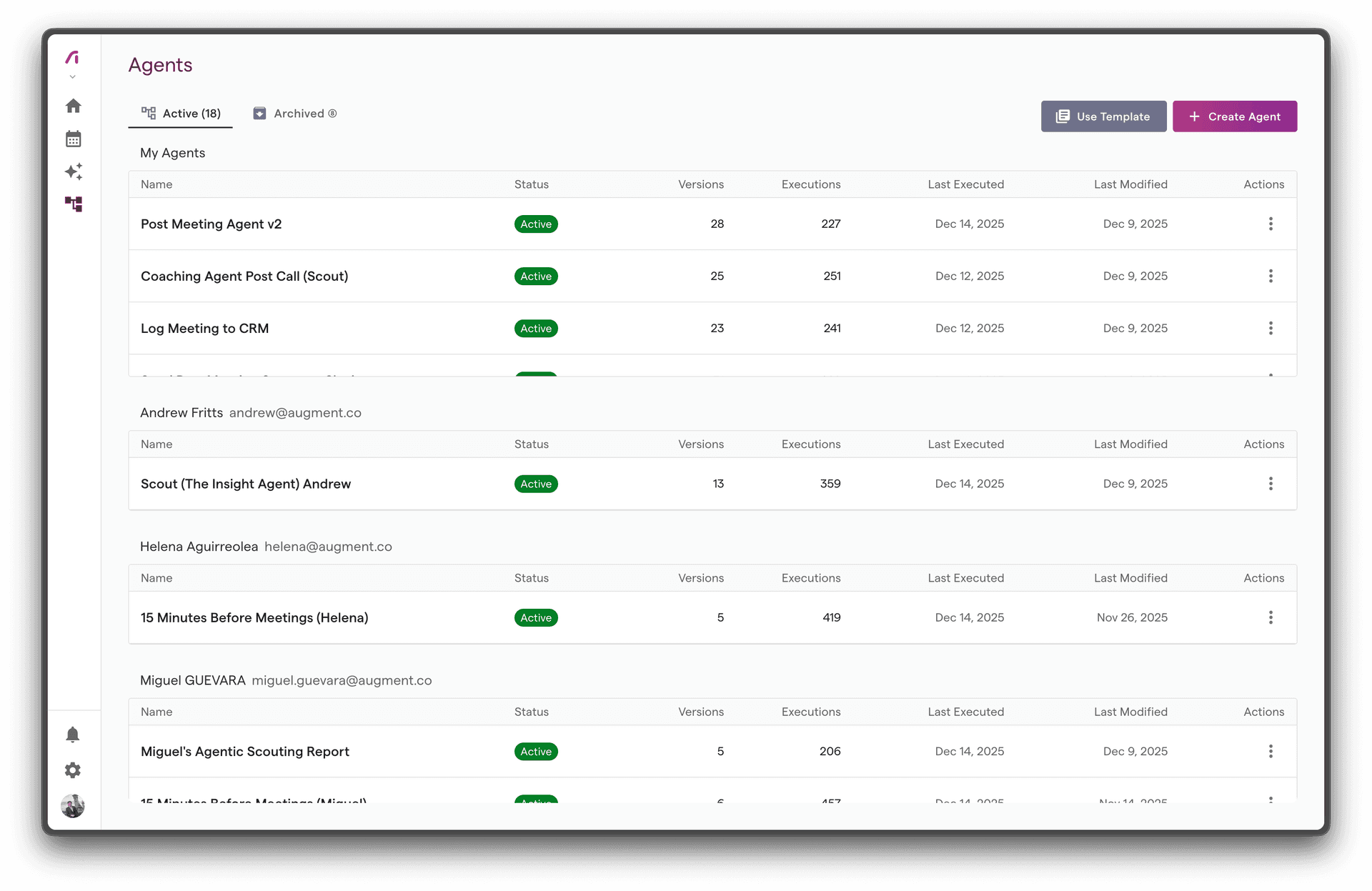
- Log into your Decision Site workspace
- Click Agents in the sidebar navigation
- You'll see the Agents dashboard with your workflows
Understanding Your Workspace Integrations
Integrations in Decision Site are configured at the workspace level by administrators. Before building workflows that use external services, verify the integrations you need are available.
Checking Available Integrations
- Go to Settings → Integrations
- View connected services and their status
Requesting Integrations
If you need an integration that isn't connected:
- Contact your workspace administrator
- Request they connect the required service
- They'll complete the OAuth flow in Settings → Integrations
Note: Integration setup is a workspace-level configuration that affects all Decision Site features, not just Agents.
User Permissions
| Role | Capabilities |
|---|---|
| Viewer | View workflows and executions |
| Creator | Create, edit, and release workflows |
| Admin | Full access + manage workspace settings |
Integration Requirements by Node Type
Different workflow nodes require different integrations to be connected:
| Node Type | Required Integration |
|---|---|
| Slack Post | Slack |
| Create HubSpot Task | HubSpot |
| Create Salesforce Task | Salesforce |
| CRM Update | HubSpot or Salesforce |
| Send Email | None (zero config) |
| Send SMS | None (zero config) |
Next Steps
With access to Agents and required integrations available:
Troubleshooting Access Issues
Can't see Agents in sidebar
- Verify you have ADMIN or CREATOR role
- Contact your workspace administrator
Integration nodes show errors
- Check Settings → Integrations for connection status
- Ask admin to reconnect if token expired
Need an integration that's not connected
- Contact workspace administrator to add the integration